Add a Forum entrance link to your site
The Forum entrance is a link on your WordPress site that signs members in to your forum. Members who are signed in to WordPress and have a connected forum account go straight to the forum without entering a password again.
Before you start
- XFtoWP is connected to your forum in XenForo → Settings.
- Your API key is a super user key with the
authandauth:login_tokenpermissions. - You have a test member whose forum account is already connected. Test as that member in a private window, not as an administrator.
Add the link to your menu
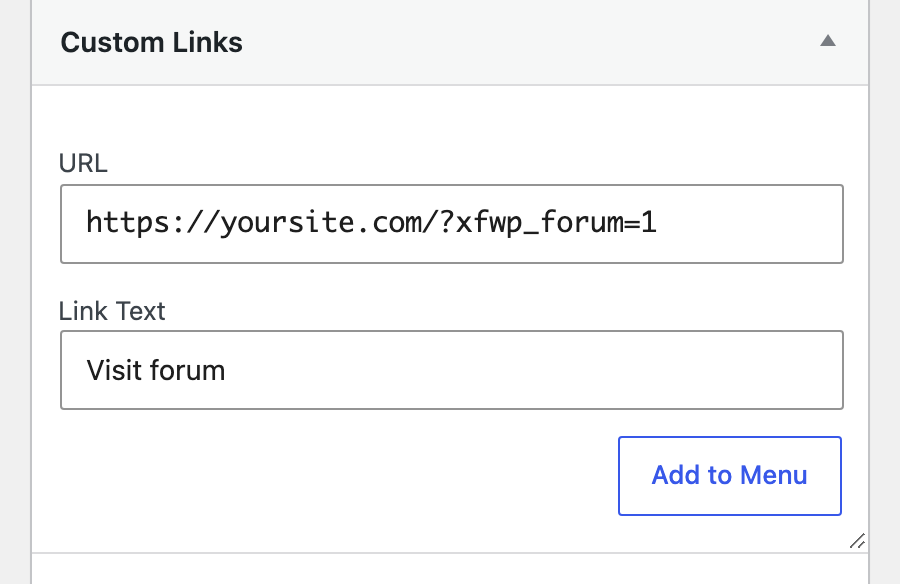
The Forum entrance is your WordPress address followed by ?xfwp_forum=1:
https://yoursite.com/?xfwp_forum=1Use your WordPress address, not your forum address. If WordPress is installed in a folder, keep the folder: https://yoursite.com/members/?xfwp_forum=1.
- Go to Appearance → Menus, or open the Navigation block in a block theme.
- Add a Custom Link with the address above.
- Label it Forum or Visit forum and save.
You don’t need a page or any other setting for this link to work.
What members see
- Signed in and connected: XFtoWP asks the forum for a fresh login and sends them to the forum, signed in.
- Signed out: the WordPress login form opens. After logging in, they continue to the forum.
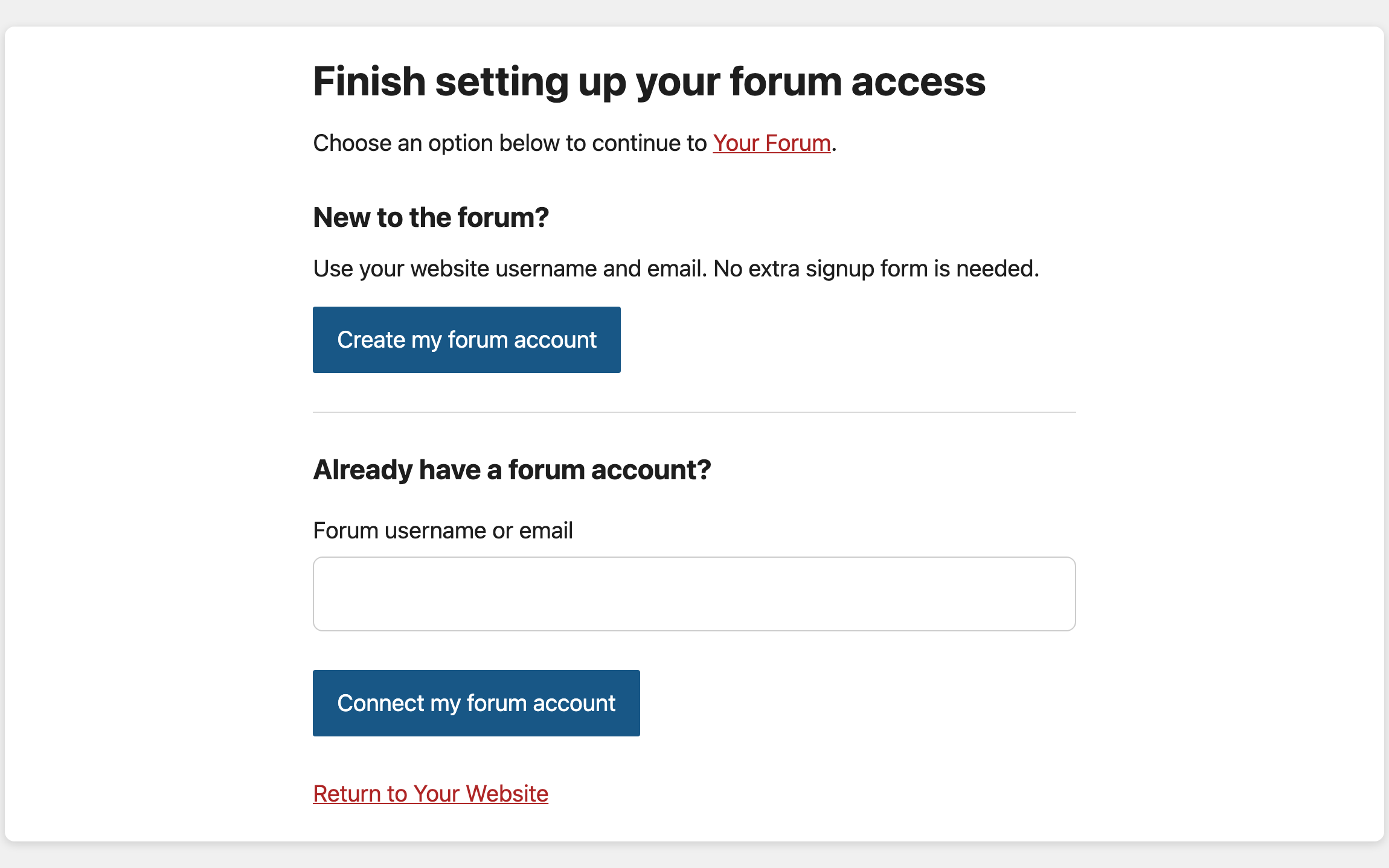
- Signed in but not connected: your site shows a form to connect their forum account, or create one if you allow it. See Let members create or connect their forum account.
- Forum can’t be reached: your site shows a message with a link to try again.
XFtoWP requests a new forum login every time the link is clicked, so the link never expires.
Use a page address instead
If you’d rather have an address like yoursite.com/forum/, create a page for it:
- Publish an empty page with the address you want.
- Copy its ID from the edit screen address. In
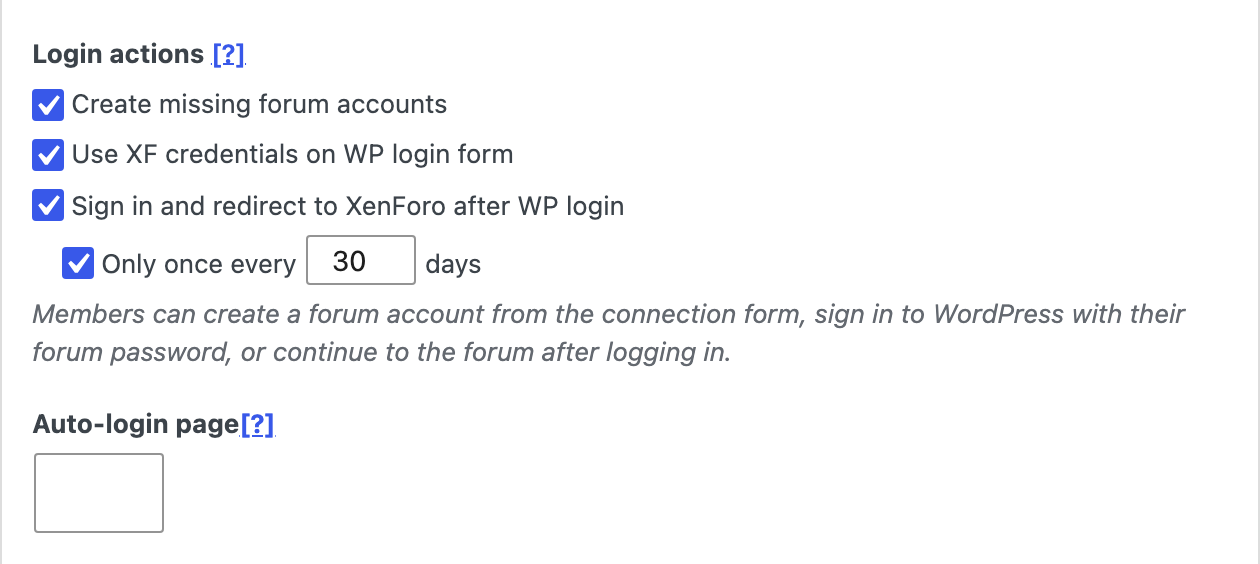
post.php?post=123&action=editthe ID is123. - Enter the ID in Auto-login page under XenForo → Settings → User syncing → WordPress and save.
The page works exactly like the link above. Don’t use a page members visit for other reasons, such as a checkout or account page.
Add the link in content or theme files
In posts, pages and widgets, the [xf auth] shortcode prints the Forum entrance address. Menu and button link fields usually don’t run shortcodes, so use the full address there.
In theme files, use the PHP function:
<a href="<?php echo xfwp_forum_auth_url(); ?>">Visit forum</a>The [xf url] shortcode prints your forum address without signing anyone in.
Check that it works
- In a private window, log in to WordPress as your connected test member.
- Click the forum link. You should arrive on the forum signed in as that member.
- Log out of the forum only, then click the link again. You should be signed in again.
- Log out of both sites and click the link. Log in to WordPress when asked, and you should continue to the forum.
If it doesn’t work
- The member arrives signed out: check that their forum account is connected on their Edit User screen, and that your API key has
auth:login_token. - The link goes to your forum address: the menu link points to your forum instead of
yoursite.com/?xfwp_forum=1. - You see your own account: test as a normal member in a private window. Your administrator session can hide which account is signed in.
To send members to the forum automatically after they log in to WordPress, see Redirect members to the forum after WordPress login.