Let members create or connect their forum account
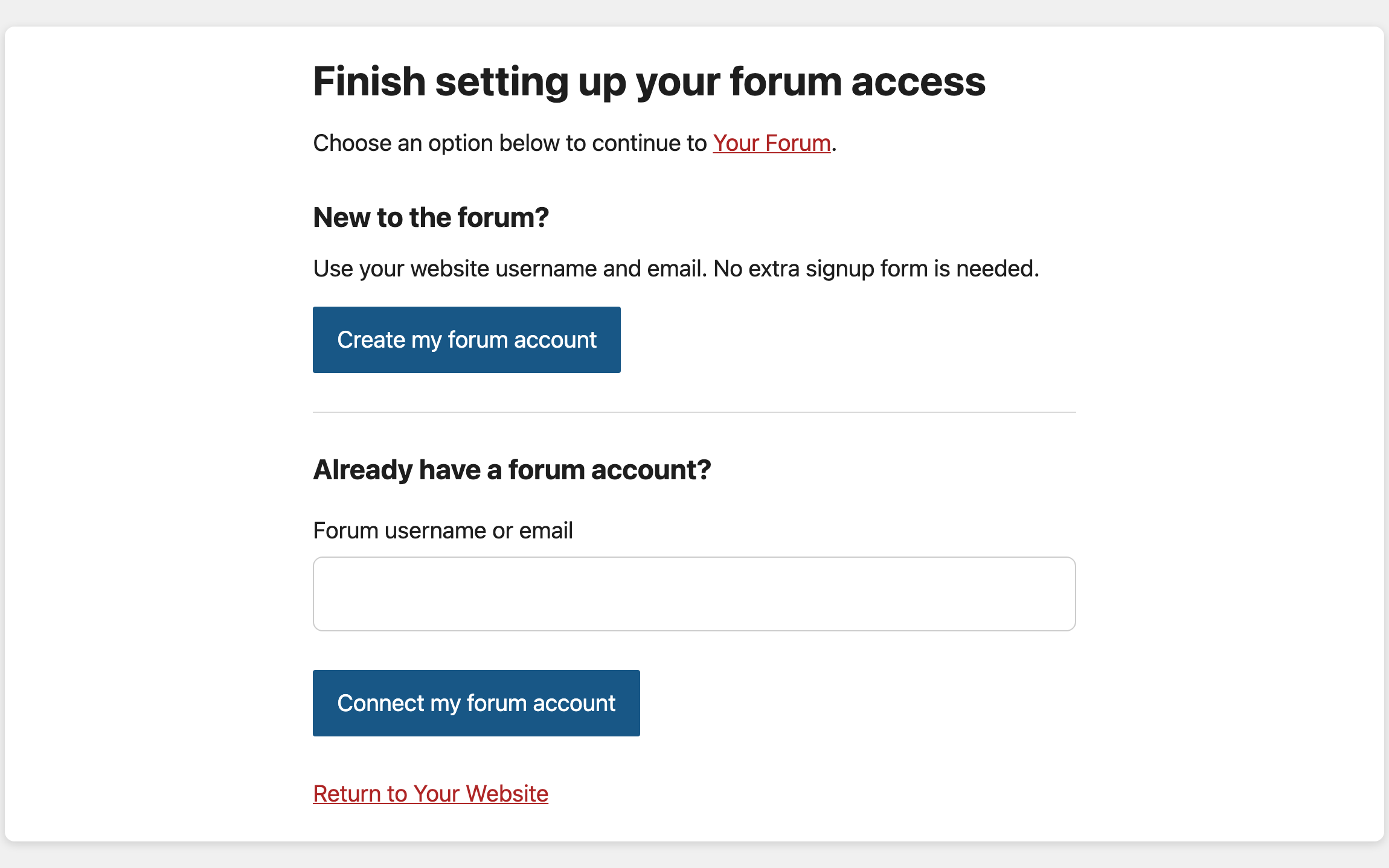
When a WordPress member without a connected forum account clicks your forum link, XFtoWP shows a form to finish setting up their forum access. Members who are new to the forum can create an account in one click. Members who already have a forum account can connect it.
Where the form appears
- On the Forum entrance: members who aren’t connected see the form on your site when they click the forum link. See Add a Forum entrance link to your site.
- On a page you choose: add the
[xf template="user-verify"]shortcode to an account page so members can connect accounts any time. See How to add a Manual User Verify Form to a Page.
Both show the same form. Visitors who aren’t logged in to WordPress see a prompt to log in first.
Let new members create a forum account
- Go to XenForo → Settings → User syncing → WordPress.
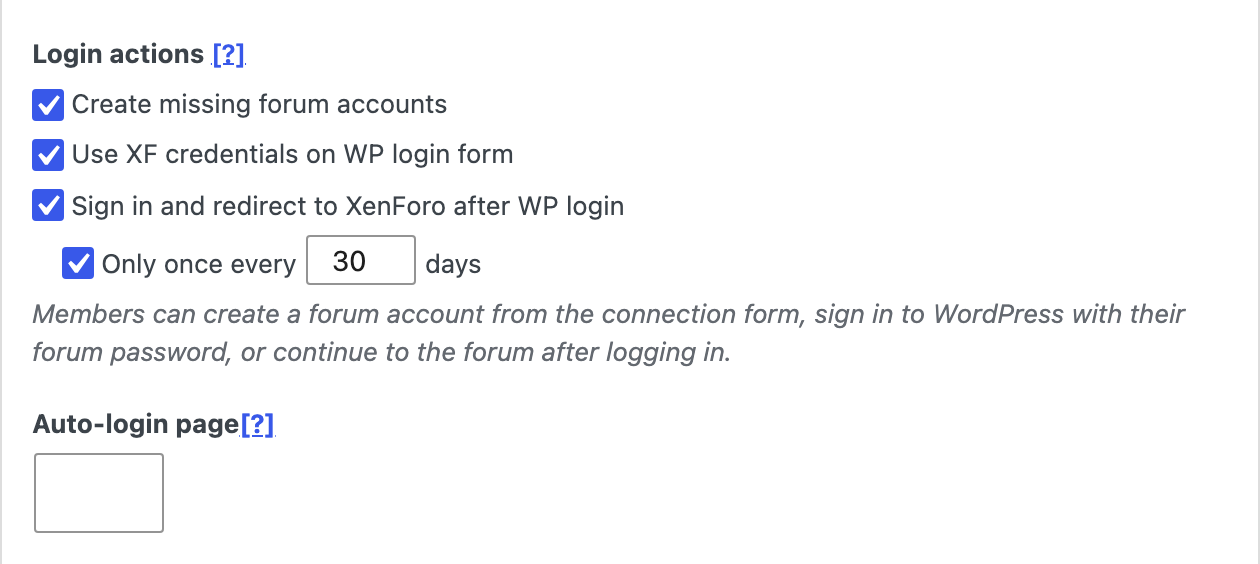
- Under Login actions, turn on Create missing forum accounts and save.
Members now see a Create my forum account button. Clicking it creates a forum account with their WordPress username and email, connects it, and continues to the forum. They don’t fill in another signup form.
The forum account gets a new password. Their WordPress password isn’t copied. They can keep using your forum link to sign in, or reset their forum password to log in on the forum directly.
When this setting is off, members see a link to register on the forum, then come back to connect the new account.
Connect an existing forum account
- The member enters their forum username or email. If their WordPress email matches a forum account, the form suggests it.
- They click Connect my forum account.
- XFtoWP sends a confirmation to that forum account as a forum alert, or as a conversation or email if alerts aren’t available.
- The member opens the confirmation while logged in to the same WordPress account. The accounts are connected and they continue where they started.
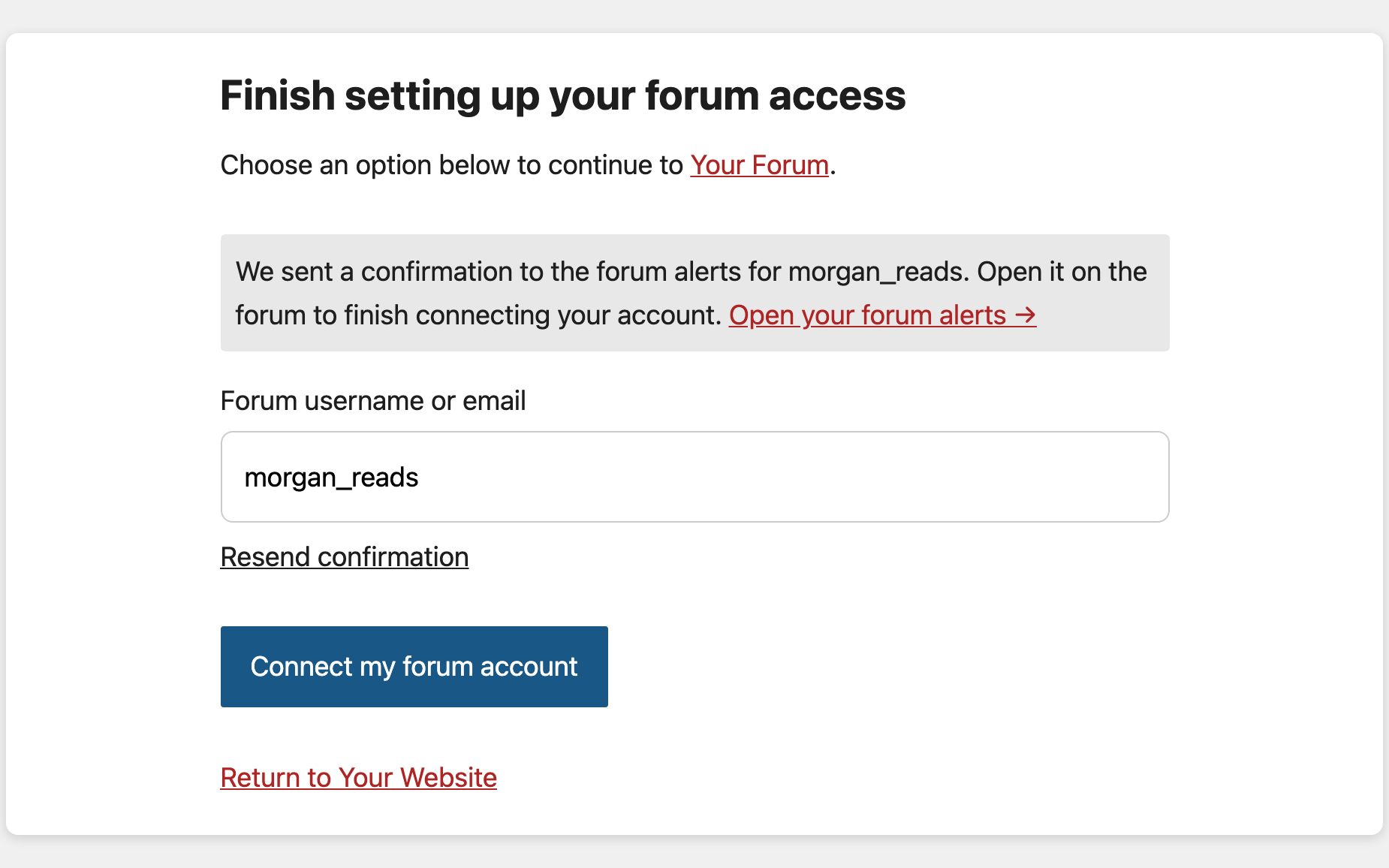
The confirmation expires after 7 days. Members can send it again after 2 minutes.
Why matching emails aren’t connected automatically
An email match doesn’t prove the member owns the forum account, so XFtoWP always asks the forum account to confirm. If you want to connect many matching accounts at once, an administrator can run Connect existing users in Bulk Actions. See How to use Bulk Actions.
Change your main account
The main account is the forum account the forum link signs members in to. When more than one forum account is allowed, the form shows Make this an additional account below the main account.
- Check Make this an additional account and click Update users.
- The account moves to Additional accounts and stays connected. The Main account field is empty.
- Enter the forum account you want to sign in with and click Connect my forum account. It needs confirmation, like any new main account.
To remove an account completely instead, check Disconnect user. Forum groups XFtoWP added to that account are removed.
What can go wrong
- The username is taken on the forum: the form shows the error. The member can connect their existing account instead.
- The forum account is a forum super administrator: it can’t be connected, and the form says so. Sign in to super administrator accounts on the forum directly.
- A forum account already uses their email: XFtoWP sends a confirmation to that account instead of creating a second one.
- The forum can’t be reached: XFtoWP doesn’t create anything. The member can try again later.
- The confirmation expired or was opened in another account: the member starts again from the form.
Change the wording
Every message in the form can be changed in XenForo → Edit strings on the Account connections tab. Keep {forum} and {site} in your text so XFtoWP can add your forum and site names.