Strings Manager
Translate XFtoWP into your site’s language
Strings Manager lists the text XFtoWP shows on your site, from comment headings to buttons. Type your translation and save.
Included in every XFtoWP license · WordPress 6.2+ · XenForo 2.3+
The problem
Plugin text in the wrong language
A German or Spanish community shouldn’t see English buttons under every post. Editing translation files usually means FTP and a code editor.
Without Strings Manager
- English labels on a non-English site
- Editing
.pofiles by hand - Mixed languages on one page
- Changes lost when the plugin updates
With Strings Manager
- Translate text from XFtoWP settings
- Strings grouped by where they appear
- Original text shown under each field
- Translations kept through plugin updates
Setup overview
How Strings Manager works
Open Edit strings
Find it in the XFtoWP admin menu.
Type your translation
The original text shows under each empty field.
Save
Your text replaces the original on your site.
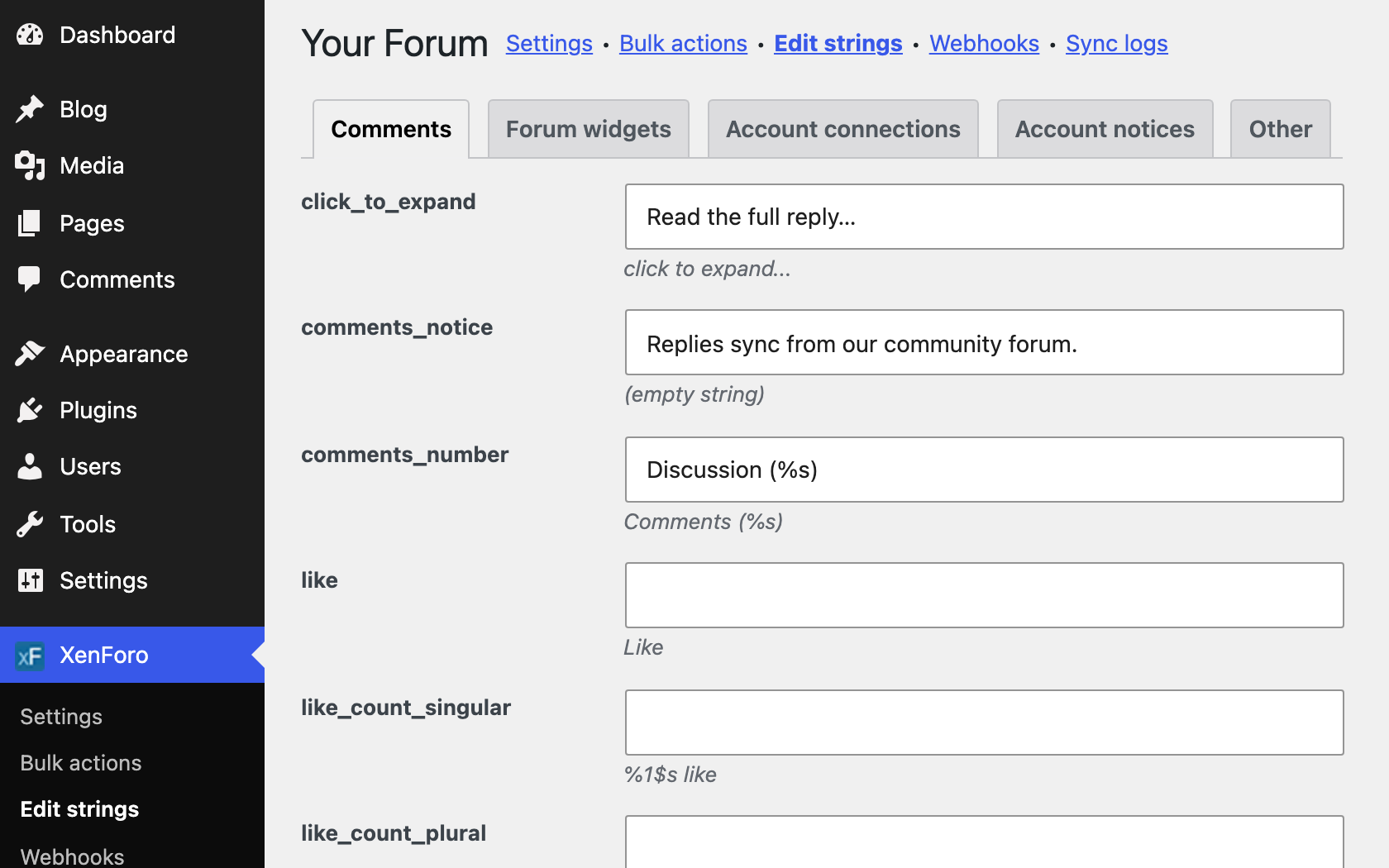
Edit strings
Translate strings, grouped in tabs
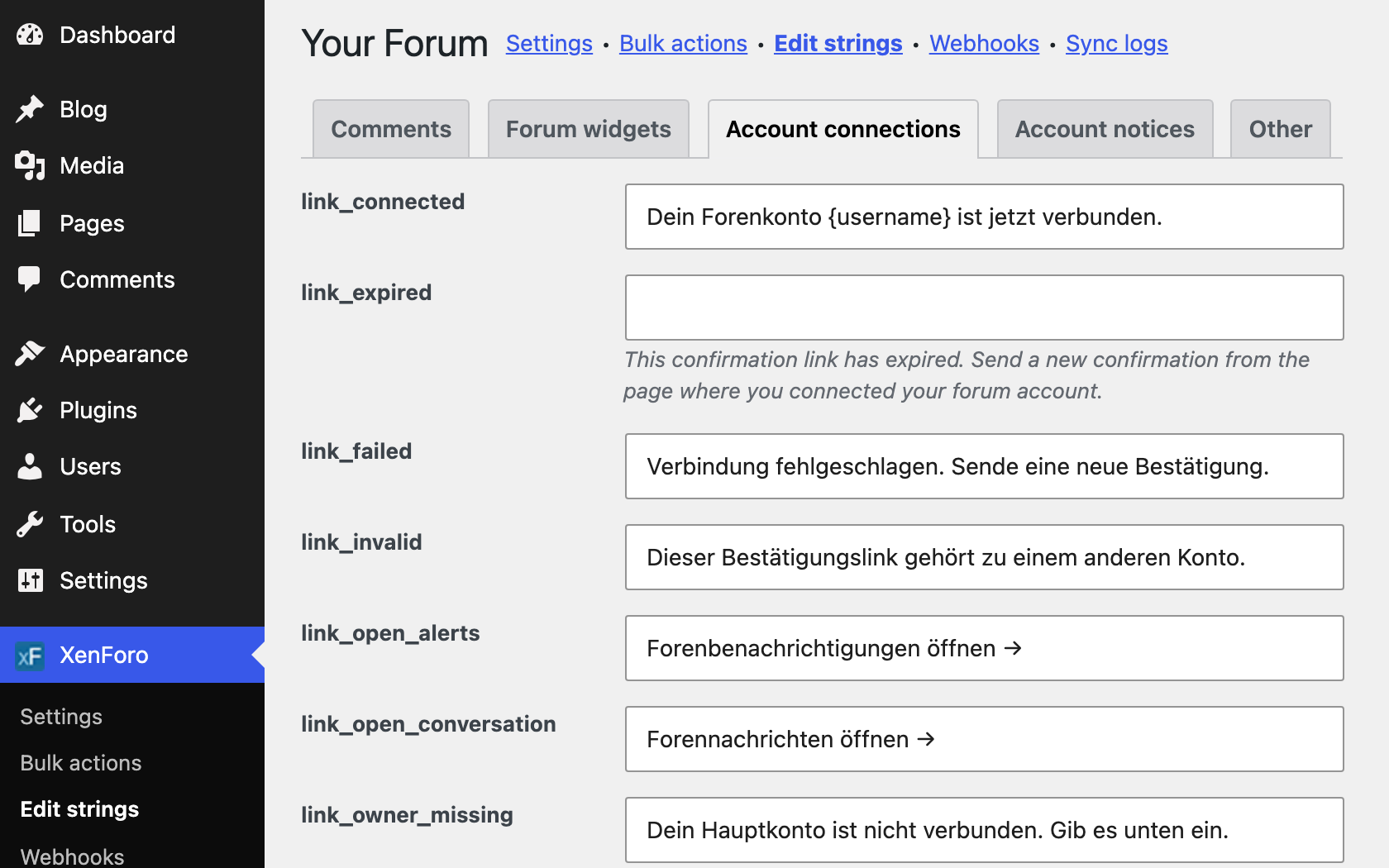
Strings are grouped by where they appear. Type your translation or your own wording, or leave a field empty to keep the original.
- Grouped in tabs
- Original text under each field
- Saved in your XFtoWP settings
xfwp.pot
Translation template
Included in the plugin’s languages folder
Translation plugins
Translation plugins and translation files
XFtoWP includes a translation template, so you can also translate it with a translation plugin or .po files.
- Includes
xfwp.pot - Uses the
xfwptext domain - Works with translation plugins
At a glance
What’s included
Translate strings
Type your own text for any listed string.
Grouped in tabs
Find strings by where they appear on your site.
Original text shown
See the original text under each field.
Kept through updates
Translations are saved in settings, not plugin files.
Translation-ready
Includes xfwp.pot for translation plugins.
Developer filters
Change any string in code with the xfwp_strings filter.
Setup guides for every option: read the docs →
Questions about Strings Manager
Frequently asked questions
Have another question? Ask in the support forums.
Can I translate XFtoWP into my language?
Yes. Type your translation for each string in Strings Manager, or translate xfwp.pot with a translation plugin.
Do my translations survive plugin updates?
Yes. Your text is saved in XFtoWP settings, not in plugin files.
Does it work with my translation plugin?
Yes. XFtoWP includes xfwp.pot and uses the xfwp text domain.
Can my site show XFtoWP in more than one language?
Strings Manager saves one version of each string. For a site in several languages, translate the xfwp text domain with your translation plugin and leave those strings empty in Strings Manager.
Which text can I change?
The strings listed on the Edit strings screen, grouped by where they appear on your site.
How do I go back to the original text?
Clear the field and save. The original text is shown under the empty field.
Can I change strings in code?
Yes. Use the xfwp_strings filter. The xfwp_can_translate filter controls which strings appear in Strings Manager.
XFtoWP features
User syncing
Sync registrations, logins, groups and fields.
Bulk Actions
Import users both ways or refresh them all.
Thread connect
Forum threads under posts, replies as comments.
XF Content widget
Stats, latest posts and featured threads.
Strings Manager
Translate or edit every text string.
Developer tools
Templates, hooks, filters and API requests.
Get Strings Manager with XFtoWP
One license includes Strings Manager, every other XFtoWP feature, and a year of updates and support.
$79 · 40% off renewals
Instant download
Docs & forum support